1
Activate the app and choose your provider
Enter your license, then select OpenAI or Anthropic in the desktop app. AI Optimizer supports one active provider at a time in v2.2.0.
AI Optimizer runs locally and sits between your workflow and the selected provider API, helping reduce repeated spend with caching and clearer request visibility.
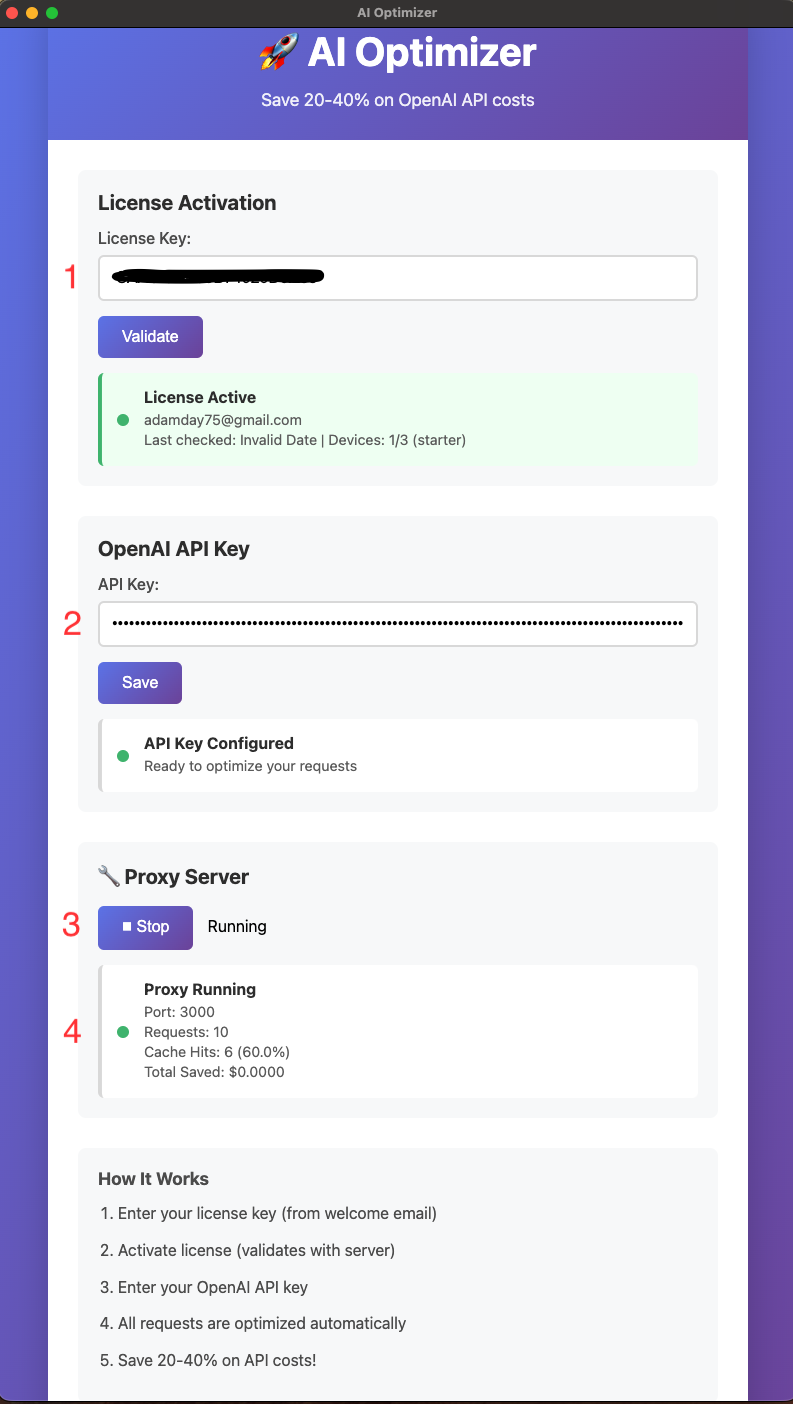
Enter your license, then select OpenAI or Anthropic in the desktop app. AI Optimizer supports one active provider at a time in v2.2.0.
You can store both keys in the app, but the proxy uses the currently selected provider for local routing.
Once the proxy is running, AI Optimizer listens on http://localhost:3000/v1.
Your tools, scripts, or automations send requests to AI Optimizer first instead of calling the upstream provider directly.
Repeated work can be served locally while the app shows request totals, cache hits, and hit rate so you can confirm the optimizer is doing useful work.
For many OpenAI-compatible tools, the main setup step is routing traffic through AI Optimizer locally:
OPENAI_BASE_URL=http://localhost:3000/v1AI Optimizer 2.2.0 supports both OpenAI and Anthropic. You can store both API keys in the app and choose one active provider at a time through the desktop UI.
Cache behavior is provider-aware, so OpenAI and Anthropic requests do not collide with each other even when the local proxy workflow stays the same.
Many developer tools, scripts, cron jobs, and agent workflows repeat the same or nearly identical requests. Without a local control layer, every repeat call can hit the provider API at full cost.
AI Optimizer includes an adjustable cache TTL, which is especially useful for recurring jobs, cron-style workflows, and repeat-heavy automations where the same request pattern shows up on a predictable schedule.
Install AI Optimizer, choose your provider, point traffic at localhost, and start reducing repeated API waste without rebuilding the way your team already works.